
PK AVIA Deposit and Withdrawal Guide
The PK AVIA game app includes an account wallet where registered users can add funds and submit withdrawal requests. Both options are usually available after signing in to the platform through the mobile website or the PK AVIA APK on Android.
The steps are simple, but every payment detail should be checked carefully before confirming a transaction. A wrong mobile-wallet number, account name or payment reference may delay the process or send funds to the wrong place.
How to Deposit Money in the PK AVIA Game App
Start by opening the PK AVIA game app or visiting the official platform through your mobile browser. Sign in with the phone number, username and password connected to your account.
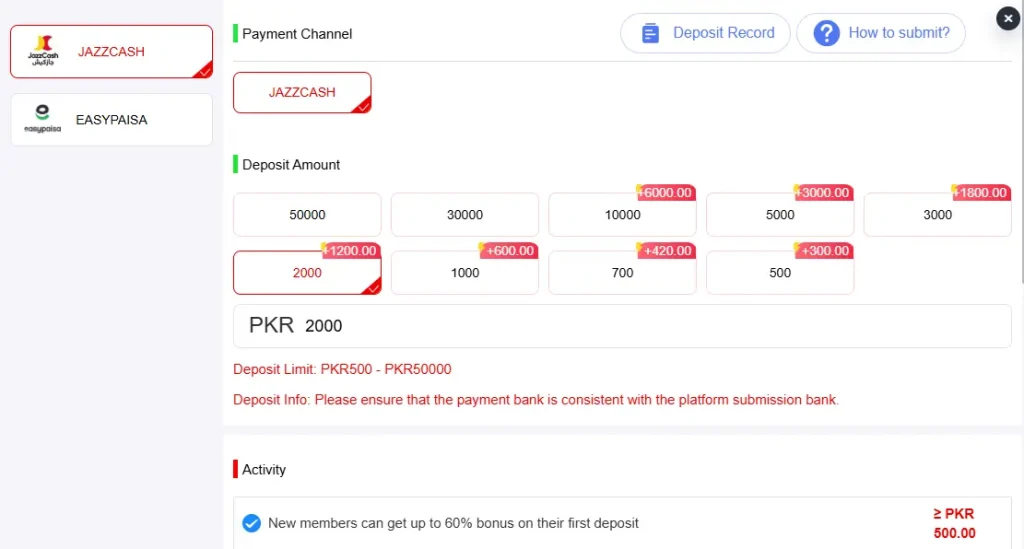
After logging in, open the account, wallet or balance section. Look for a button labelled Deposit, Recharge, Add Funds or Cash In. The wording may differ depending on the version of the website or app you are using.
Tap the deposit button to view the payment methods currently available for your account. Choose the option you prefer and read the instructions shown on the screen before sending any money.
Enter the amount you want to add. The page may display a minimum deposit requirement, maximum transaction amount or payment fee. Check these details carefully because limits can change and may differ between payment methods.
Some deposit options may ask you to transfer money to a displayed mobile-wallet or bank account. When this happens, copy the payment details exactly as they appear. Do not send money to a number received through an unknown social media message, unofficial WhatsApp account or random website.
Complete the transfer through your selected payment service. After paying, return to the PK AVIA deposit page and enter the requested transaction information. This may include:
- The deposited amount
- Sender’s mobile number
- Transaction ID or reference number
- Payment account name
- Screenshot of the payment receipt
Review the information before submitting it. The amount entered in the deposit form should match the amount shown on your receipt.
Tap Submit, Confirm or Deposit Now to send the request. Once the payment is accepted, the amount should appear in your PK AVIA account balance.
How to Deposit Through the PK AVIA APK
Android users who access the platform through the PK AVIA APK can follow nearly the same process.
Open the app and sign in to your registered account. Tap the wallet or balance icon, then select the deposit option. Choose one of the payment methods displayed inside the app and enter the required amount.
Follow the on-screen payment instructions and complete the transaction through the relevant payment service. Return to the PK AVIA APK, provide the transaction reference and upload a receipt when requested.
Keep the payment confirmation until the balance appears in your account. A receipt can be helpful if the deposit remains pending or needs to be checked by customer support.
Do not close the app while submitting the form, and avoid pressing the confirm button several times. Duplicate submissions can make it harder to identify the correct payment request.
How to Deposit on iPhone
iPhone users can open PK AVIA through Safari or through a website shortcut added to the Home Screen.
Sign in to the same account you used during registration. Open the wallet section and tap Deposit. Select an available payment method, enter the amount and follow the instructions provided on the page.
Complete the payment outside Safari when necessary, then return to the deposit page. Add the correct transaction ID and any other details requested by the platform.
You do not need to install an unknown iPhone profile simply to make a deposit. The payment section can be opened through the mobile website when it is available for your account.
How to Withdraw Money from PK AVIA
To request a withdrawal, open the PK AVIA earning app, website or Android APK and sign in to your account.
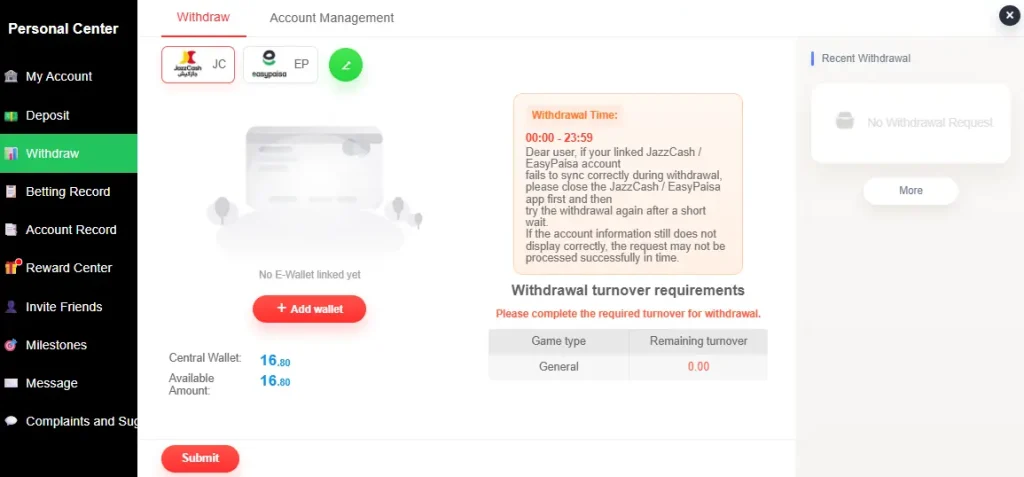
Go to the wallet, balance or account section and select Withdraw, Cash Out or a similar option. The withdrawal page should display the methods currently supported for your account.
Choose the payment method you want to use. Enter your own mobile-wallet, bank or payment account details carefully. The receiving account should belong to you, and the account holder’s information should match the details used for your PK AVIA account whenever the platform requires verification.
Enter the withdrawal amount. Before continuing, check the minimum and maximum limits shown on the page. You should also review any withdrawal fee, wagering condition, account-verification requirement or pending bonus condition displayed in your account.
Tap Confirm Withdrawal or Submit Request after checking every field. The request may first appear as pending while it is reviewed.
Do not share your password, payment PIN or one-time verification code with anyone claiming that it is required to release the withdrawal. Genuine mobile-wallet and banking PINs should remain private.
How to Withdraw Through the PK AVIA Game App
Open the app and tap the balance displayed near the top of the screen. Select the withdrawal option and choose one of the available receiving methods.
Add the requested account details, including the correct phone number or account number. Enter the amount you wish to withdraw and review the information before confirming.
A small typing mistake can cause a failed or delayed payment. Check each digit carefully, especially when entering a mobile-wallet number.
After submitting the request, open the transaction or withdrawal-history section. This area may show whether the request is pending, approved, completed, cancelled or rejected.
Avoid creating several withdrawal requests for the same balance. Wait for the current request to receive an update before trying again.
How to Withdraw on iPhone
Open the PK AVIA website in Safari or use the shortcut on your iPhone Home Screen. Log in and visit the wallet section.
Tap the withdrawal button, select the receiving method and enter your payment details. Add the amount and complete any verification step shown on the page.
Review the phone number or account number one final time before submitting the request. You can then check its status from the account’s transaction-history section.
The iPhone process takes place through the mobile website, so users should keep Safari open until the request has been submitted successfully.
Why a PK AVIA Deposit May Remain Pending
A deposit may not appear immediately when the payment information is incomplete or does not match the transfer receipt.
Common issues include entering an incorrect transaction ID, submitting a different amount, using an expired payment instruction or uploading an unclear receipt. A weak internet connection can also interrupt the submission before the form reaches the platform.
Open the transaction-history page first to check whether the request was recorded. Do not send the same deposit again unless you are sure the first payment failed.
When contacting support, provide only the details needed to identify the transaction, such as the date, amount and payment reference. Never send your login password, banking PIN or mobile-wallet PIN.
Why a PK AVIA Withdrawal May Be Rejected
A withdrawal request may be unsuccessful when the entered payment details are incorrect, the available balance is too low or the amount does not meet the limit shown in the account.
The platform may also ask the user to complete account verification before processing a payment. In some cases, bonus or promotional conditions may affect how much of the displayed balance is eligible for withdrawal.
Open the withdrawal-history section to look for a reason or status message. Correct the account details before submitting a new request.
Tips for Safer Deposits and Withdrawals
Use only the payment details displayed inside your logged-in account. Avoid sending funds through links, numbers or QR codes shared by strangers.
Always check the website address before signing in. Fake pages can copy the name of the PK AVIA earning app and attempt to collect passwords or payment information.
Create a unique password for your account and keep all verification codes private. Save screenshots of completed deposits and withdrawal requests until each transaction is resolved.
Before depositing, read the current limits and conditions shown by the platform. Do not assume that a payment option, minimum amount or processing period will always stay the same.
The PK AVIA game involves real-money gaming, so deposits should never be treated as guaranteed income. Only use money you can afford to lose.
PK AVIA Deposit and Withdrawal FAQs
Where can I find the deposit button?
Sign in to the PK AVIA game app and open the wallet, balance or account section. The deposit option should appear there when funding is available for your account.
Can I deposit through the PK AVIA APK?
Android users can open the wallet inside the PK AVIA APK and follow the payment instructions displayed in the app.
Can iPhone users make a deposit?
Yes. iPhone users can access the payment section through Safari or a PK AVIA shortcut added to the Home Screen.
Where can I check my transaction status?
Open the wallet and look for Transaction History, Deposit Record, Withdrawal Record or a similar menu.
What should I do if my deposit is missing?
Check whether the request appears in your transaction history. Confirm that the amount and transaction ID were entered correctly, then contact the platform’s official support channel when necessary.
Why is my withdrawal still pending?
A request may remain pending while the payment details or account information are being reviewed. Check the status inside your account and avoid submitting duplicate requests.
Does the PK AVIA earning app guarantee withdrawals?
No gaming platform should be presented as a source of guaranteed earnings. Withdrawals depend on the available balance, account status, platform rules and payment information entered by the user.